Short answer: for a single product, use Shopify Magic, the free AI button in the product description editor. For a catalog, export your products to CSV and write descriptions with a chatbot, or use an app that drafts the description content, FAQ and SEO fields for every product and lets you review them before they go live.
AI is good at the blank-page part of product copy. It's bad at facts it wasn't given. The methods below differ mainly in how much of your real product data reaches the AI, and how much checking is left to you.
Method 1: One product at a time with Shopify Magic
Shopify Magic is free on every plan and built into the product editor.
- Open a product in Products.
- In the Description toolbar, click the sparkle icon.
- Enter the product's features and a few keywords, the more specific the better: "merino and alpaca, 200 × 35 cm, hand wash, made in Scotland".
- Choose a tone, click Generate, and read the result. Click Keep to insert it, edit what isn't right, and save.
It's quick and it costs nothing. It writes the description field only, one product at a time, from what you type into the box, so you're still the one gathering the facts for every product.
Method 2: A whole catalog with ChatGPT and a CSV
For more than a handful of products, work on a spreadsheet:
- Go to Products → Export and export your products as CSV. Keep this file as a backup.
- Copy the Handle, Title, Body (HTML), Type, Tags and option columns for a batch of 10 to 20 products into ChatGPT, Claude or Gemini with a prompt like the one below.
- Paste the results back into the Body (HTML) column. Read every one.
- Go to Products → Import, choose the file, tick Overwrite products with matching handles, and import.
You write product descriptions for [store], which sells [what] to [who].
Tone: [warm and plain / technical / playful]. British or American English: [pick].
For each product below, write: a two-sentence summary, then 3 to 5 bullet highlights.
Use only facts from the data. If a material, size or care instruction is missing,
leave it out; never guess. Return HTML (<p> and <ul>), one block per handle.

[paste the rows]
This scales and costs little. The catch is the handling: copying batches back and forth, checking the HTML, and one wrong import can overwrite live descriptions, which is why the backup matters.
Method 3: Every product with Zutomatic
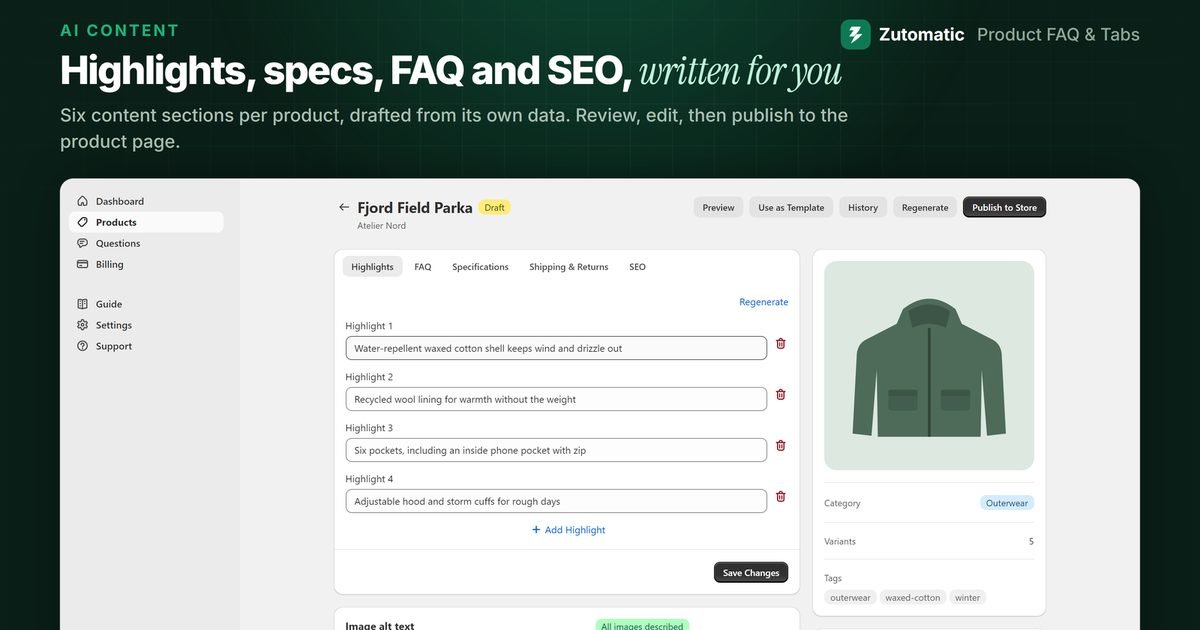
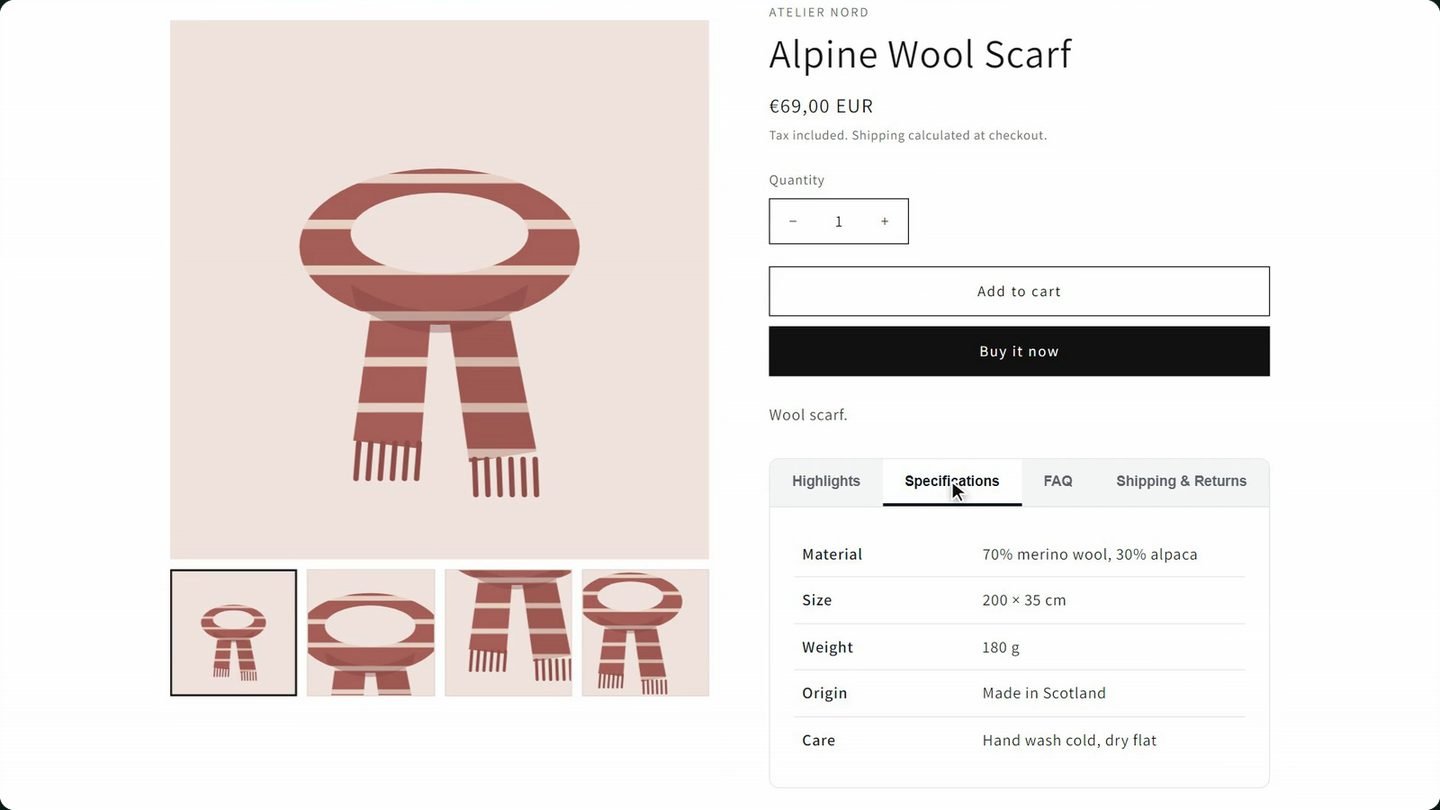
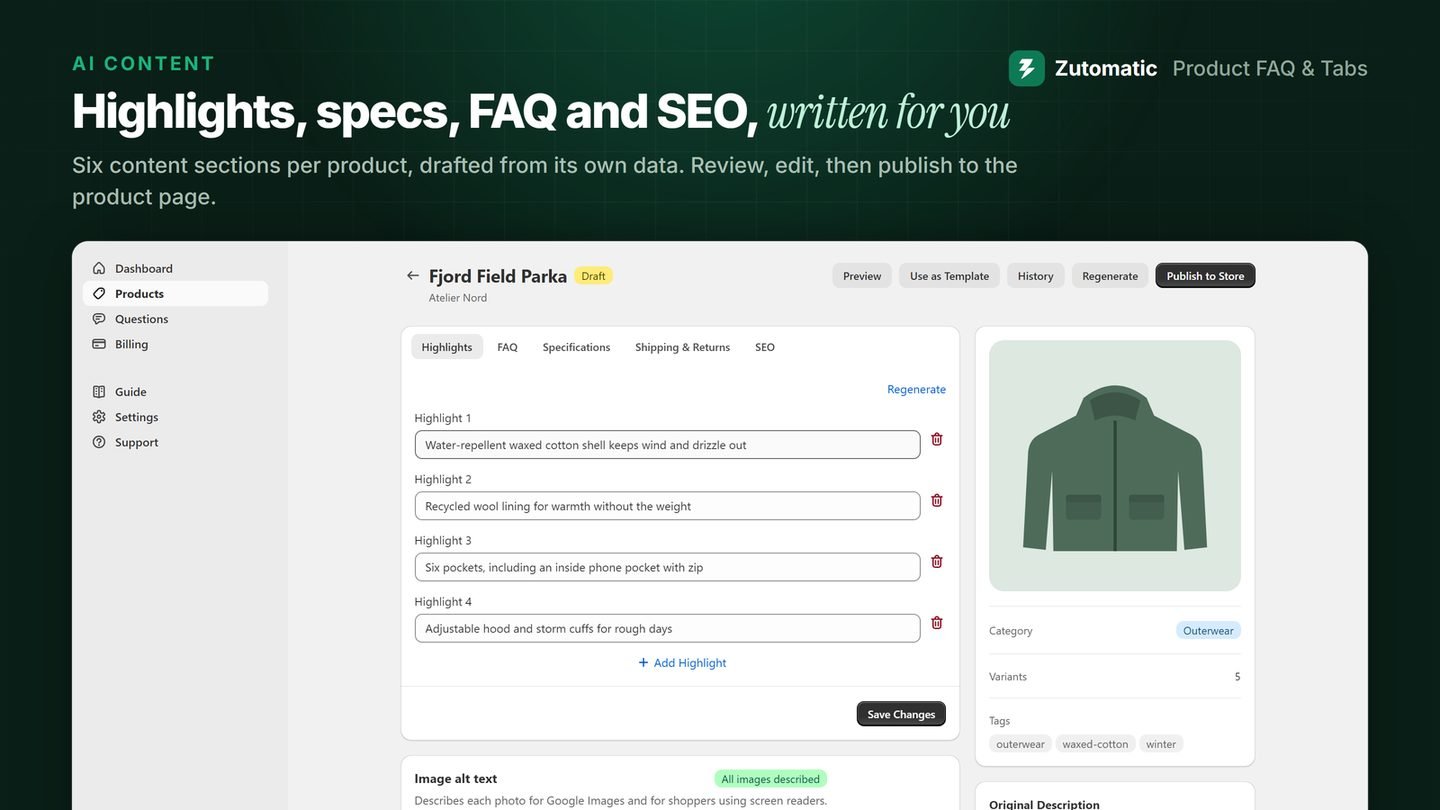
Zutomatic: Product FAQ & Tabs reads each product's own data (title, description, options, type, tags) and drafts the content a product page usually lacks: highlights, a specifications table, a product FAQ, shipping and returns notes, and the SEO title and meta description.
- Install Zutomatic: Product FAQ & Tabs from the Shopify App Store. The free plan covers 10 products.
- On a paid plan, set your brand voice, tone and language in Settings. There are 11 languages, and the content is written in that language, not translated from English.
- Open a product and click Generate AI Content, or on a paid plan, generate for many products at once.
- Review each section, edit anything that isn't right, and click Publish to Store.
- Add the Zutomatic Product Tabs block to your product template in the theme editor, once.
Your own product description stays exactly as it is; the new content shows in the block next to it. The SEO title and meta description go to Shopify's own SEO fields, and the originals are kept so you can restore them. The dashboard's Catalog Health score shows which products have the thinnest pages, so you know where to start.
How to keep AI product copy good
Feed it facts, not adjectives
"Premium, stylish, high-quality" gives the AI nothing to work with. Materials, measurements, weight, what's in the box and who it's for give it everything. Put those facts in the product first; every method above gets better.
Check every claim
AI fills gaps confidently. Before publishing, check anything a customer could hold you to: materials, sizes, compatibility, care, certifications.
Make each product different
Twenty products with the same three sentences and a changed colour name help nobody. Lead with what is specific to that item.
Answer questions, don't just describe
The words that sell are usually answers: does it run small, will it fit, how do I wash it. That's why a short FAQ often does more than a longer description. See how to add an FAQ to Shopify product pages.
Which method should you choose?
| Shopify Magic | ChatGPT + CSV | Zutomatic | |
|---|---|---|---|
| Best for | A few products | A catalog, hands-on | A catalog, reviewed in the app |
| Writes | Description | Whatever you ask | Highlights, specs, FAQ, shipping, SEO |
| Uses your product data | What you type | What you paste | Reads it from each product |
| Bulk | No | Yes, by CSV | Yes, on paid plans |
| Cost | Free | Free or chatbot plan | Free for 10 products |
Use Shopify Magic for the odd new product: it's free and right there. If you're comfortable with spreadsheets and have the time, Method 2 handles a catalog cheaply. If you want the FAQ, specs and SEO fields done too, and a review step before anything goes live, that's the job Zutomatic was built for.