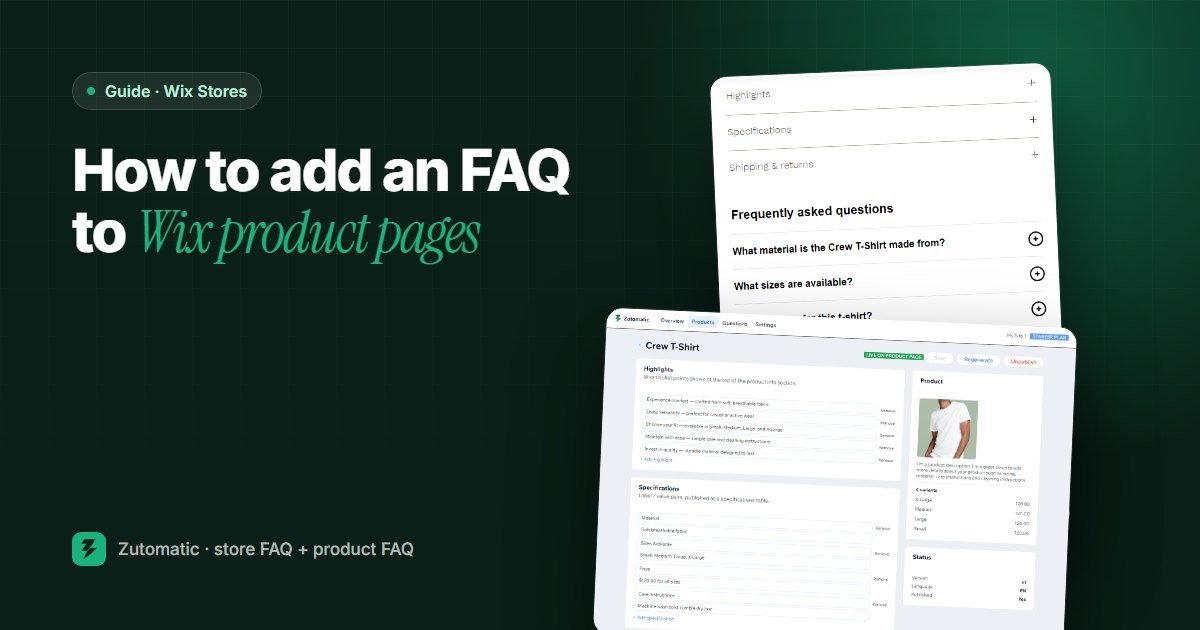
Every product gets the same few questions before someone buys. Is it waterproof? Does it fit a 15-inch laptop? Can I put it in the dishwasher? When the answer isn't on the page, shoppers either email you and wait, or leave and buy from a store that answered.
An FAQ fixes that, but where you put it matters. This guide covers both kinds of FAQ a Wix store needs and three ways to add them.
Store FAQ or product FAQ?
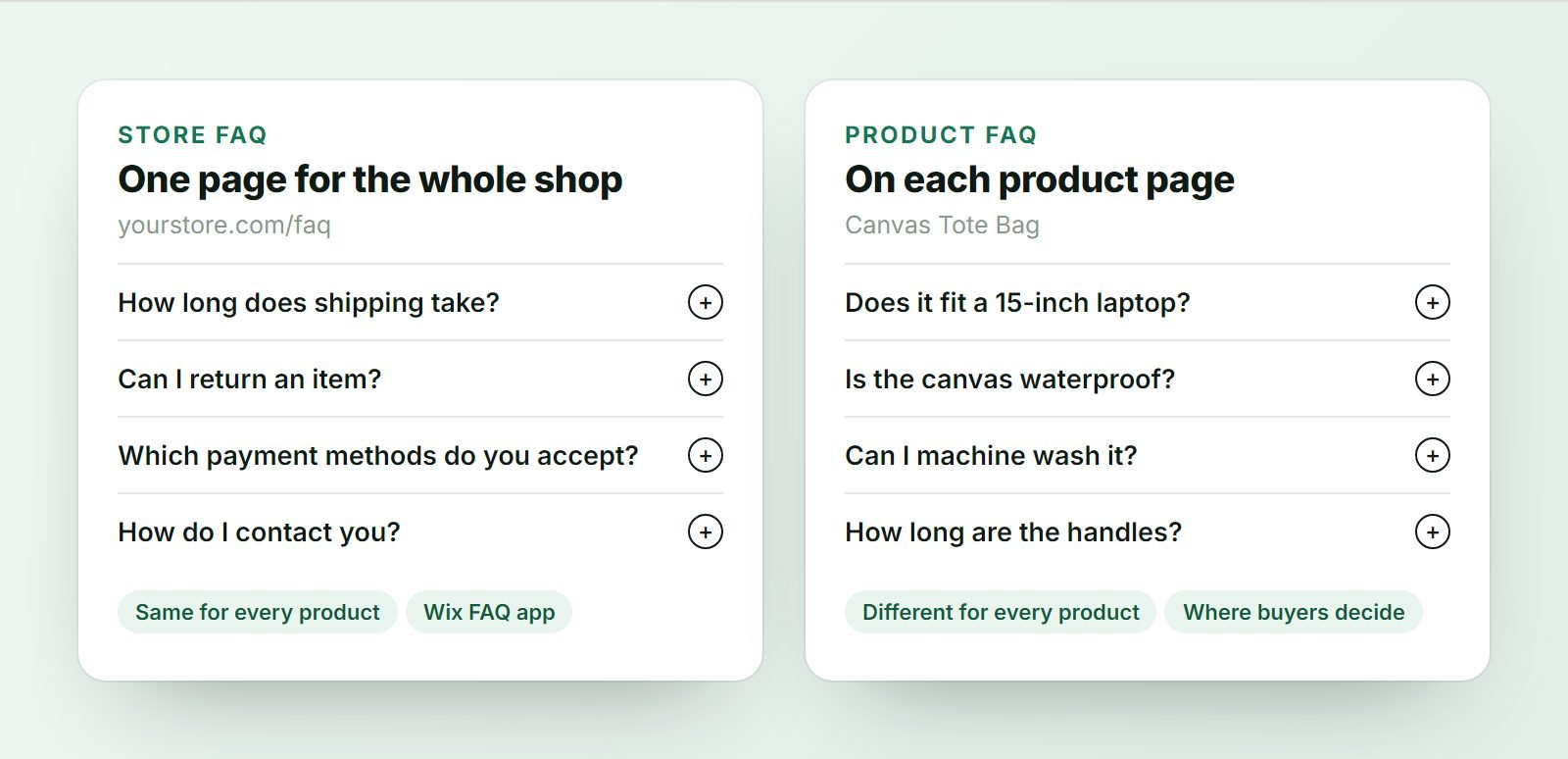
A store FAQ answers questions about your business: shipping times, returns, payment methods, how to contact you. It's the same for every product, so it lives on its own page.
A product FAQ answers questions about one item: what it's made of, how it fits, what it works with, how to care for it. These answers are different for every product, so they belong on the product page, right where the decision happens. Most stores have the first and are missing the second.
Method 1: A store FAQ page with the Wix FAQ app
Wix has a free FAQ app that adds a searchable list of questions to any page.
- In the Wix Editor, add a new page called FAQ.
- Open Add Apps, search for Wix FAQ and add it to the page.
- Click the app on the page, then Manage FAQs.
- Create categories such as Shipping, Returns and Payment, and add your questions and answers.
- Adjust the layout and colours in the app's settings, then publish your site.
- Link the page from your footer and from your order confirmation emails.
This handles policy questions well. It doesn't help with product questions, because shoppers won't leave a product page to search a separate FAQ for something about that one item.
Method 2: A product FAQ in an info section
Wix Stores lets you add info sections to each product. You can use one as a small FAQ.
- In your Wix dashboard, go to Catalog, then Store Products, and open the product.
- In the Info sections area, add a new section called FAQ.
- Write each question in bold, followed by a one- or two-sentence answer.
- Save, and repeat for the next product.
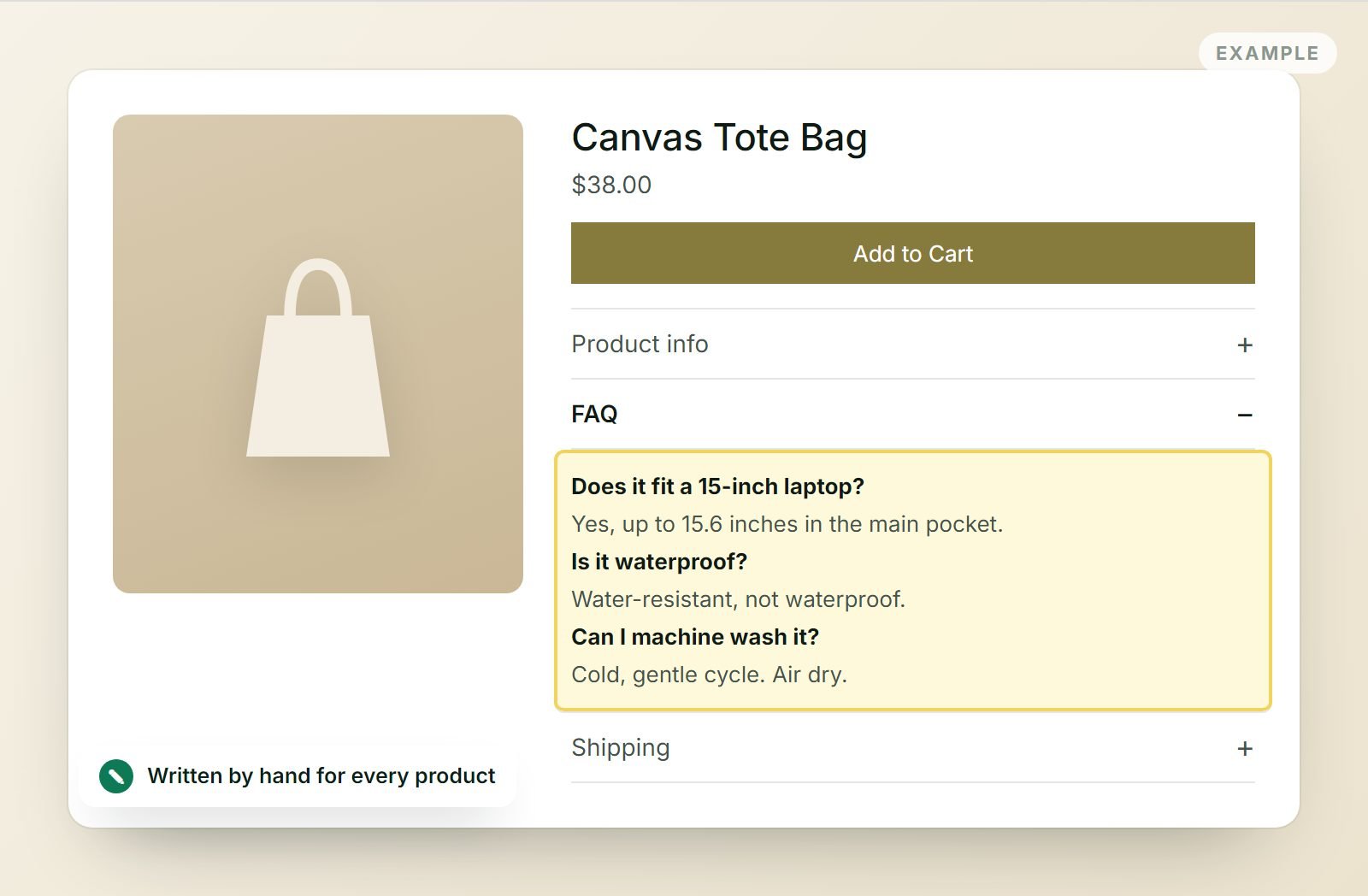
It works, and it's free. The cost is time: good product questions are different for every item, so 50 products means writing 200 to 300 answers by hand, and keeping them up to date when products change.
Method 3: Product FAQs written for every product with Zutomatic
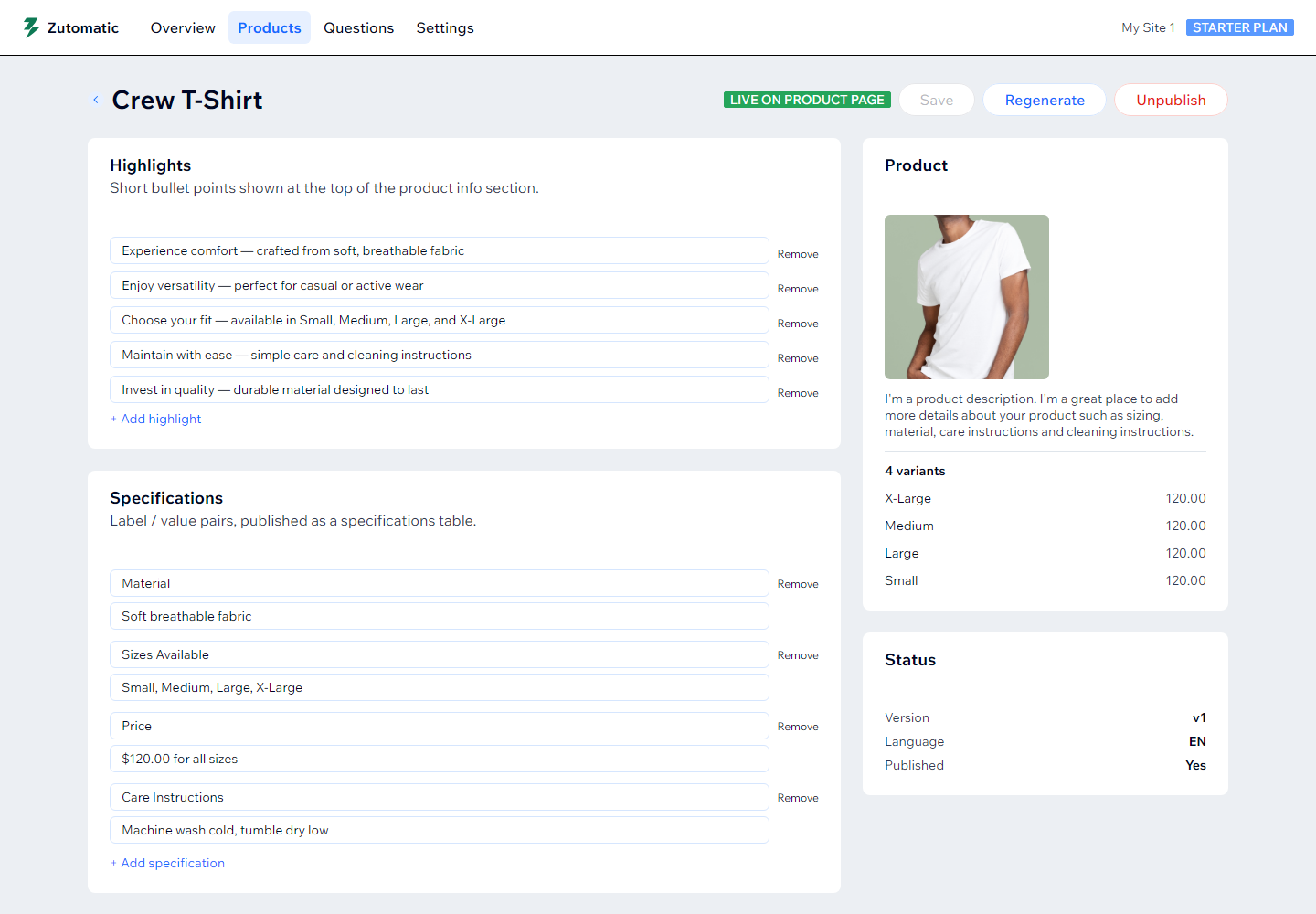
Zutomatic is a Wix app that writes a product FAQ for each product from the details you already have: title, description, options and product type. It also writes highlights, a specifications table, shipping notes and SEO fields, but the FAQ is often what shoppers notice first.
- Install Zutomatic from the Wix App Market. The free plan covers 10 products.
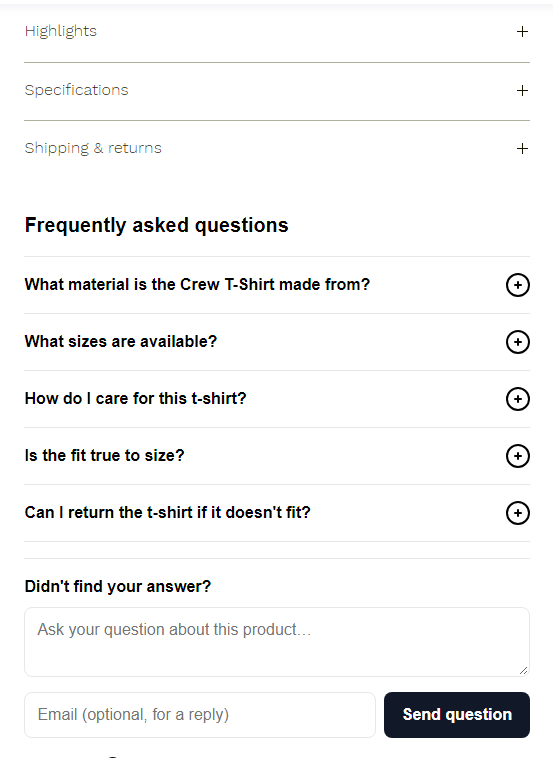
- Click Sync products, then open a product and click Generate. You get four to six questions written for that product type: care and materials for clothing, compatibility for electronics, ingredients for food.
- Read the answers and edit anything that isn't right. Nothing goes live until you publish.
- Click Publish, then add the FAQ to your product page from the Overview in one click. Publish your site once.
- On a paid plan, generate for your whole catalog at once and review as you go.
Below the FAQ, shoppers can type their own question. While they type, matching answers from the FAQ appear instantly, so many never need to send it. Questions the FAQ can't answer land in your inbox in the app, and once you reply, the answer can join that product's FAQ.
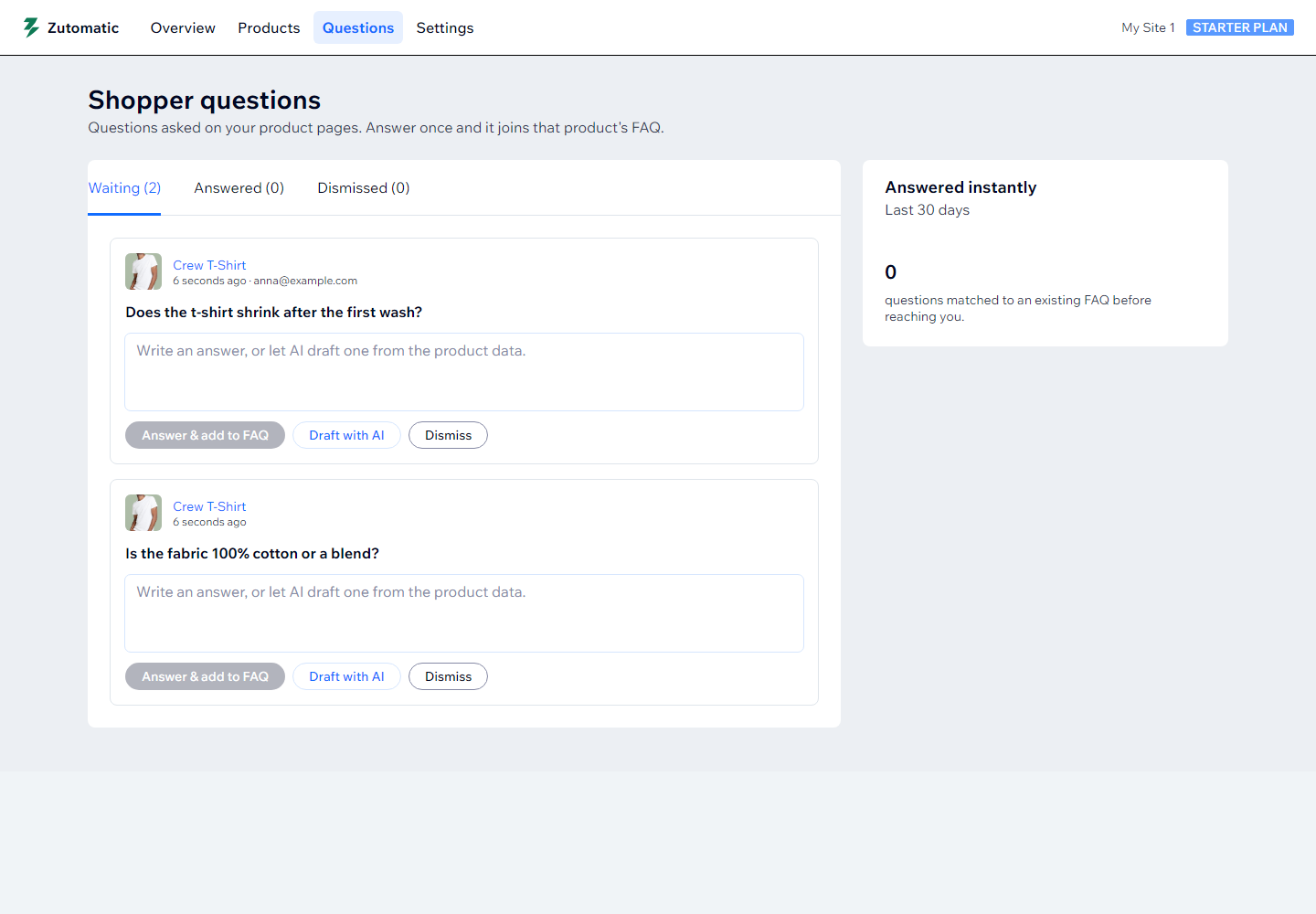
AI-written answers are based on your product information. If the description doesn't mention a material or dimension, add it to the product first, or edit the answer before publishing.
How to write a product FAQ that sells
Answer the questions that block the purchase
Good product FAQs remove doubt, they don't repeat the description. Think about what makes someone hesitate:
- Fit and size: Does it run small? What size is the model wearing?
- Compatibility: Does it fit my device, my bike, my bed frame?
- Materials: Is it real leather? Is it waterproof or only water-resistant?
- Care: Can it go in the washing machine or dishwasher?
- Delivery exceptions: Does this bulky item ship to my country?
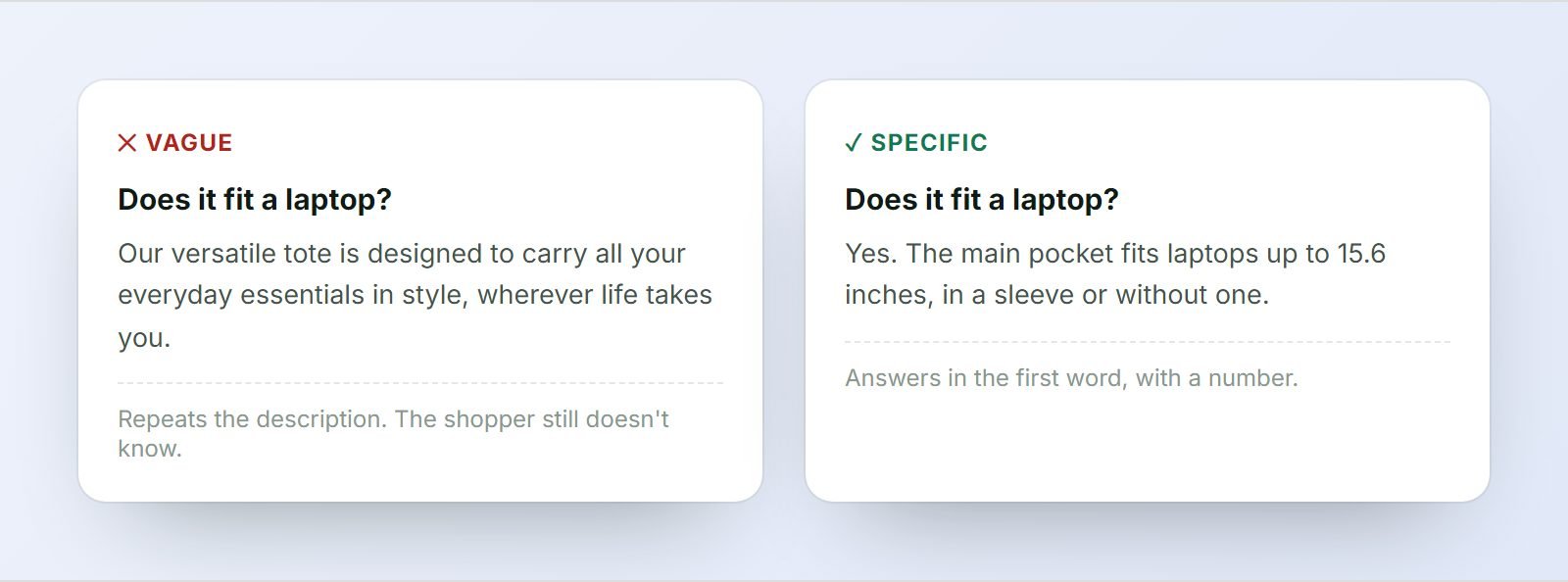
Keep answers short and specific
One or two sentences, with a number where you can. "Yes, it fits laptops up to 15.6 inches" beats a paragraph about versatility.
Use your customers' words
Your best questions are in your inbox and your reviews. If a question came up twice, it deserves a place in the FAQ.
Be honest about limits
"Not dishwasher safe, hand wash only" loses fewer sales than a return. Honest answers build the trust that makes the next sale easier.
Which method should you choose?
| Wix FAQ app | Info section | Zutomatic | |
|---|---|---|---|
| Best for | Store policies | A few products | Every product |
| On the product page | No, separate page | Yes | Yes |
| Collapsible accordion | Yes | One block of text | Yes |
| Who writes the answers | You | You, per product | AI, you review |
| Shopper question box | No | No | Yes, with instant answers |
| Cost | Free | Free | Free for 10 products |
Every store benefits from a store FAQ page for policies, and Method 1 does that well for free. For product questions, a few products can be handled by hand in info sections. Once your catalog grows past a dozen products, writing and maintaining FAQs per product is where a tool like Zutomatic saves real time.