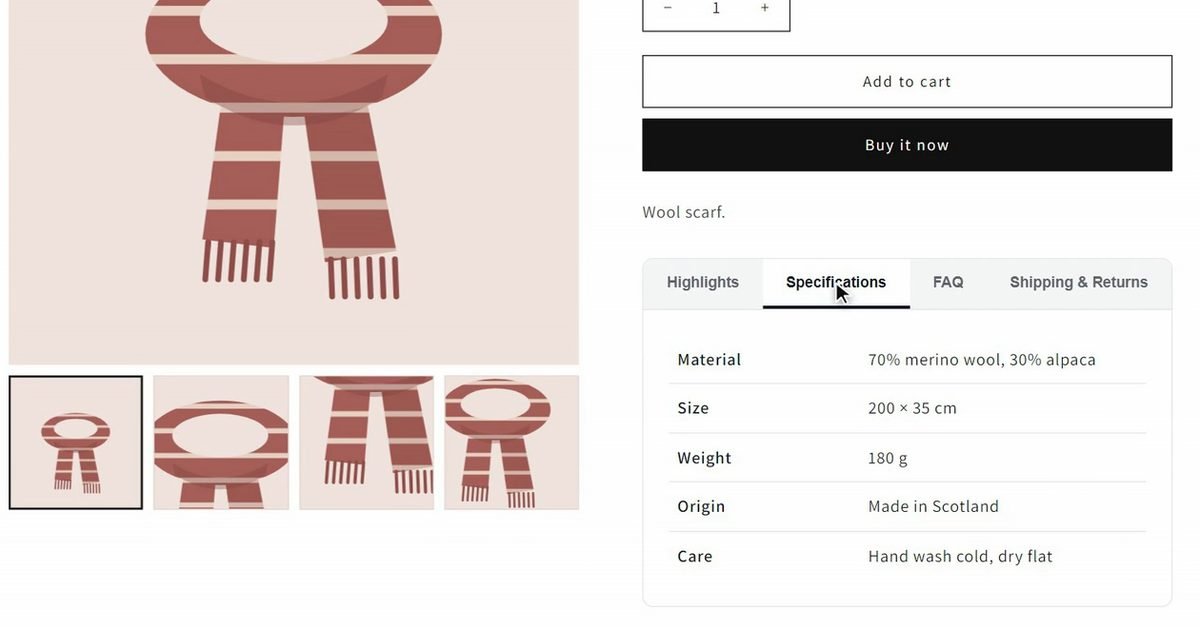
Short answer: in the theme editor, open Products → Default product and add Collapsible row blocks to the Product information section. For content that changes per product, connect each row to a product metafield. For tabs filled on every product automatically, add an app block.
A long product description is a wall of text on a phone. Tabs, or the collapsible rows most Shopify themes use instead, let shoppers jump straight to the one thing they want to check (the material, the size, the delivery time) and keep the buy button close.
Tabs or collapsible rows?
Tabs sit side by side, and one panel shows at a time. Collapsible rows (an accordion) stack vertically, and each opens on click. Dawn and Shopify's other free themes use collapsible rows; some paid themes ship a tabs block too. Both do the same job. Rows are a little easier on narrow phones, and tabs look tidier on desktop when you have three or four short sections.
Method 1: Collapsible rows with the same content on every product
Good for anything that's the same for all products: shipping, returns, warranty.
- Create the content once as a page: Online Store → Pages → Add page, for example Shipping & returns.
- Go to Online Store → Themes → Customize and choose Products → Default product in the page selector.
- In the Product information section, click Add block → Collapsible row.
- Set the heading and pick an icon, then under Row content from page choose the page you created. Drag the row to where you want it, usually just under the buy buttons.
- Repeat for each row and click Save.
One edit to the page updates every product. The limit: the text is the same everywhere, so it can't hold anything about the product itself.
Method 2: Different tab content per product with metafields
For tabs like Specifications, Materials & care or FAQ, each product needs its own text. Metafields hold that text, and the collapsible row shows it.
- Go to Settings → Custom data → Products → Add definition. Create one definition per tab, for example Specifications and Care, with the type Rich text.
- Open each product and fill those fields in the Metafields card at the bottom of the page.
- In the theme editor, on Default product, add a Collapsible row for each tab.
- Click the Connect dynamic source icon next to Row content and pick the matching metafield. Save.
Preview a product whose field is still empty: depending on the theme, the row may show with nothing inside, so fill the fields before you publish the rows. The work is in the writing: four tabs on 80 products is 320 pieces of text to write and keep current. Shopify's bulk editor can speed up the typing, but not the writing.
You can also build tabs by editing your theme's Liquid code. It works, but code changes don't carry over when you update or switch themes, so most stores are better off with blocks.
Method 3: Tabs written for every product with Zutomatic
Zutomatic: Product FAQ & Tabs adds a Product Tabs block with four tabs (Highlights, Specifications, FAQ, Shipping & Returns) and writes the content of each one for every product, from the product's own title, description, options, type and tags.
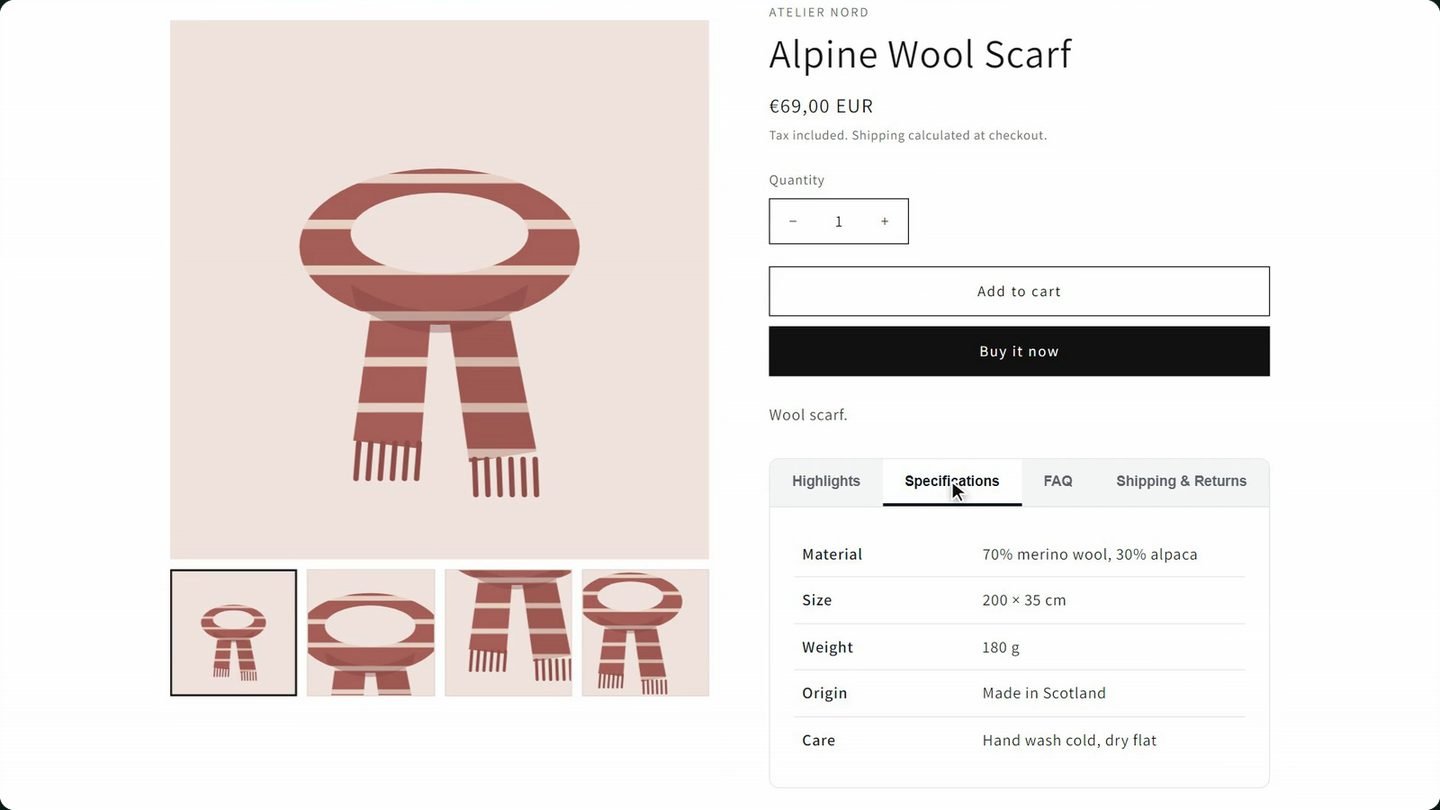
- Install Zutomatic: Product FAQ & Tabs from the Shopify App Store. The free plan covers 10 products.
- Open a product in the app and click Generate AI Content. Highlights, specifications, FAQ, shipping notes and the SEO title and description are drafted together.
- Review each tab, edit anything that isn't right, then click Publish to Store.
- In Online Store → Themes → Customize → Default product, click Add block and choose Zutomatic Product Tabs under Apps. Rename the tabs if you like, set the colours, and save.
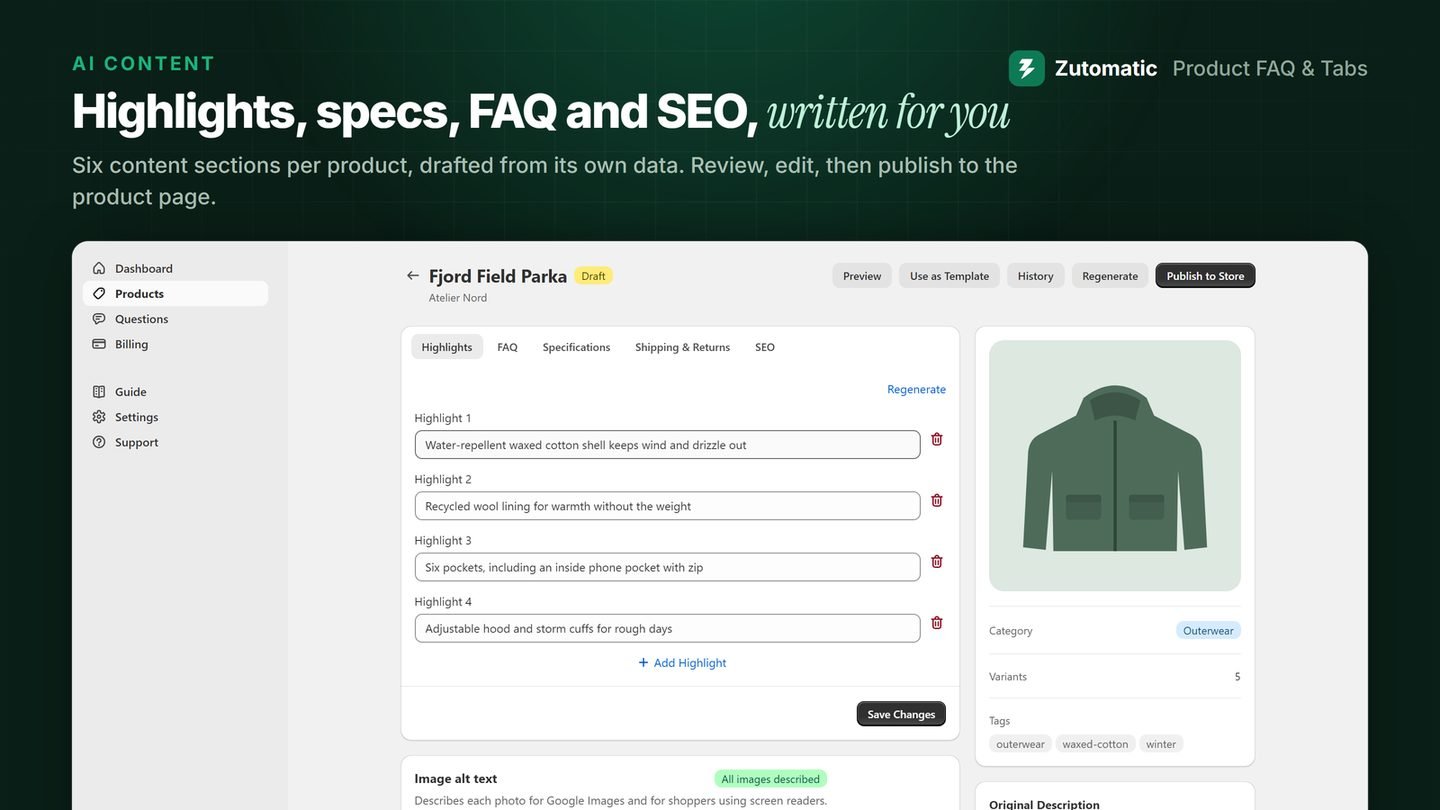
If you'd rather keep your theme's own rows, the app also has separate Zutomatic FAQ Accordion and Zutomatic Specs Table blocks you can place anywhere on the product page. The FAQ tab includes a question box with instant answers while shoppers type.
Which tabs a product page needs
Three or four is the sweet spot. Each tab should answer a question shoppers actually ask before buying:
- Highlights or description: why this product, in three to five short points.
- Specifications: materials, dimensions, weight, compatibility. A table beats a paragraph.
- Shipping & returns: delivery time, cost and the return window. The same on every product, so use Method 1.
- FAQ: the four to six questions that block the purchase. See how to add an FAQ to Shopify product pages.
Keep the first tab open by default, put the most-checked information first, and don't hide the price, the variant picker or the buy button in a tab.
Which method should you choose?
| Collapsible rows | Rows + metafields | Zutomatic | |
|---|---|---|---|
| Best for | Shipping, returns | A few products | Every product |
| Different per product | No | Yes | Yes |
| Side-by-side tabs | Accordion | Accordion | Yes |
| Who writes the content | You, once | You, per product | AI, you review |
| Cost | Free | Free | Free for 10 products |
Start with Method 1 for shipping and returns; it takes five minutes and every store should have it. For product-specific tabs, Method 2 is fine for a small catalog. Past a few dozen products, the writing is the real cost, and that's what an app like Zutomatic takes off your hands.