Right before they buy, shoppers ask two things: when will it arrive, and what will shipping cost? If the product page doesn't answer, they go looking in the cart, at checkout, or on another store. Unexpected shipping costs and unclear delivery times are among the most common reasons people abandon a purchase.
Wix Stores answers both at checkout. Here are three ways to answer them earlier, on the product page, where shoppers decide.
Method 1: Add a shipping info section
Info sections are the collapsible blocks under the product description, such as "Product info" or "Return policy". A "Shipping" section is free and needs no app.
- In your Wix dashboard, go to Catalog, then Store Products, and open the product.
- Find the Info sections area and add a new section.
- Name it Shipping & delivery.
- Write your processing time and delivery times per region, for example: Ships in 1 to 2 business days. US: 3 to 5 business days. Europe: 7 to 10 business days.
- Save, then reuse the same section on your other products.
Good for: getting something on the page today. The catch: shoppers still have to count the days themselves, the text never changes with the day of the week or your holidays, and it sits below the description where many shoppers never scroll.
Method 2: Add delivery times to your shipping settings
Every Wix delivery method can carry an estimated delivery time. Shoppers see it next to each option in the cart and at checkout.
- In your Wix dashboard, open Settings, then Shipping & fulfillment.
- Open a shipping region and edit a delivery method, such as Standard or Express.
- Fill in the estimated delivery time, for example 3 to 5 business days.
- Repeat for each region and method, then save.
Do this whatever else you choose: it keeps your checkout honest. The catch: shoppers only see it after they add to cart, and it's still a number of days, not a date.
Method 3: A live delivery date with Delivery Date & Shipping Cost
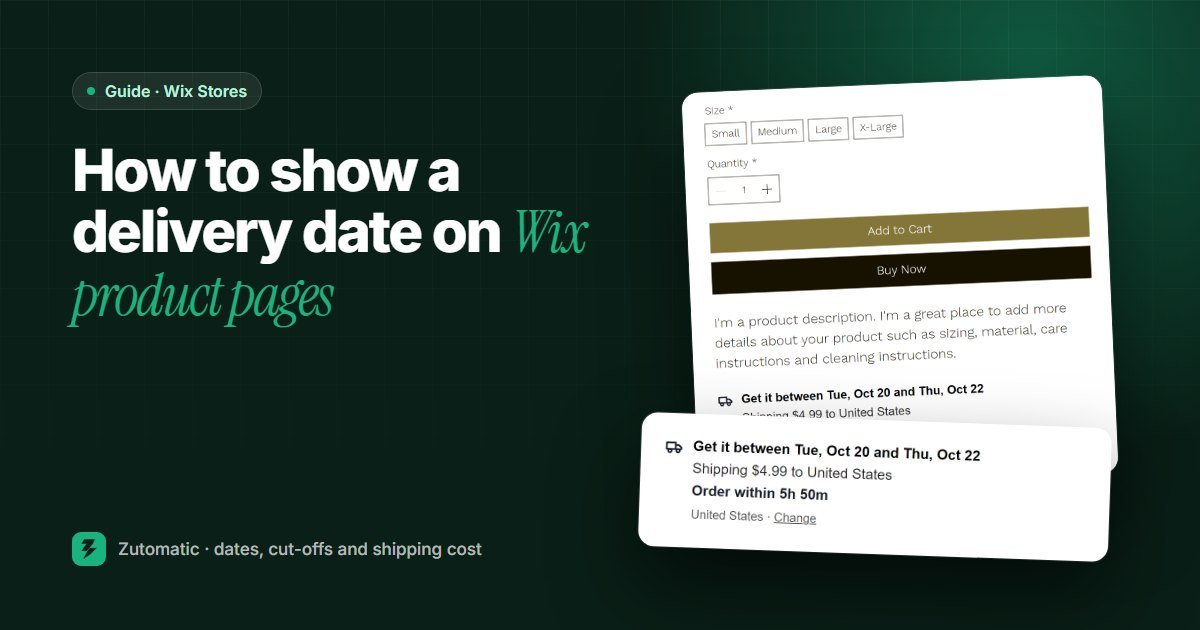
The approach large stores use: a line right under the buy button that says "Get it between Tue, Oct 20 and Thu, Oct 22", worked out for today, for the shopper's country, with a countdown to your daily cut-off. Delivery Date & Shipping Cost adds it to your Wix product pages.
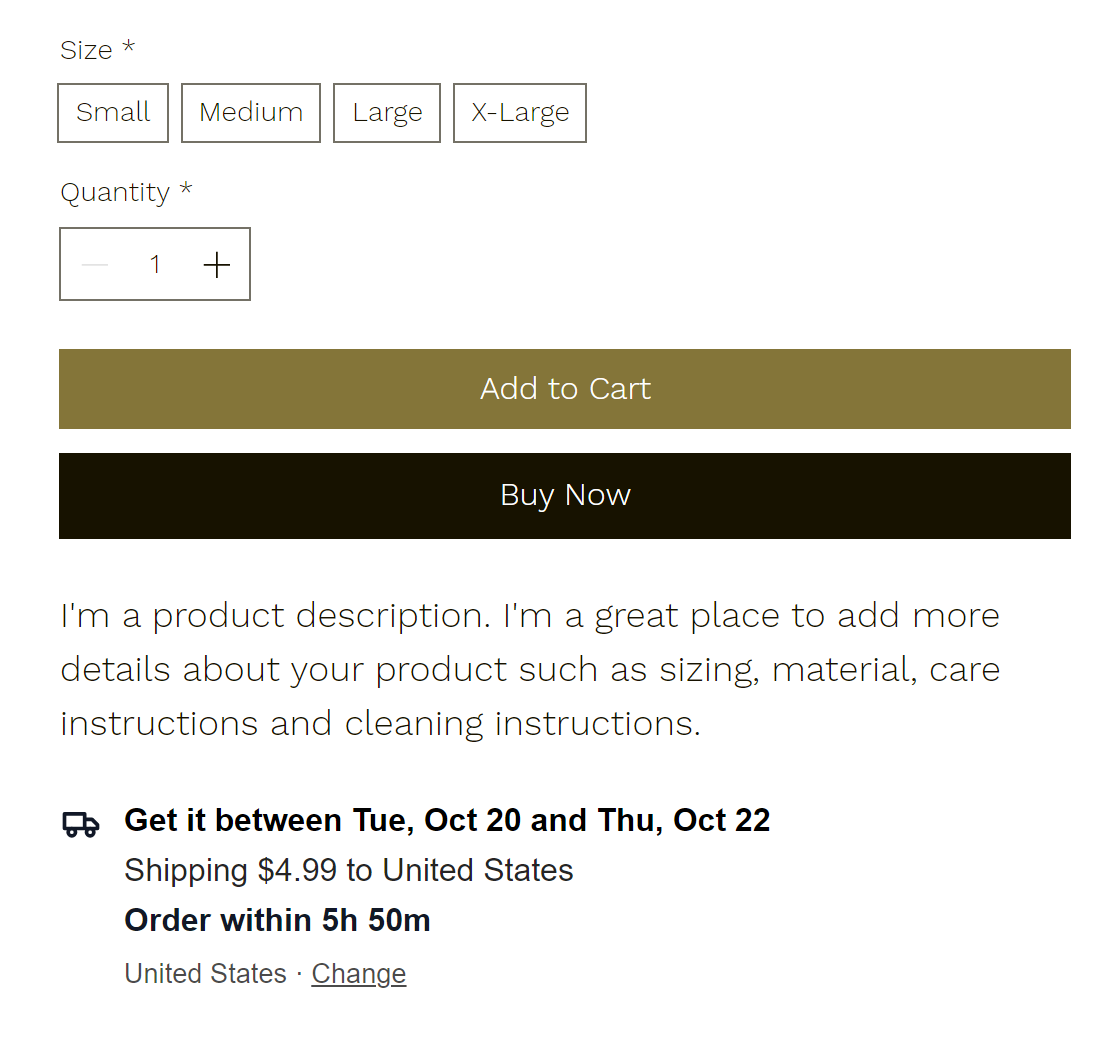
- Install Delivery Date & Shipping Cost from the Wix App Market. The free plan shows the date on every product.
- Open the app and set your rules: how many working days you take to pack an order, your daily order cut-off, the days you ship, your holidays, and how many days the carrier takes. Your country and timezone are filled in from your site.
- Check the preview. It shows the exact line a shopper would see today, for any country.
- Click Add to product page on the Overview, then publish your site once.
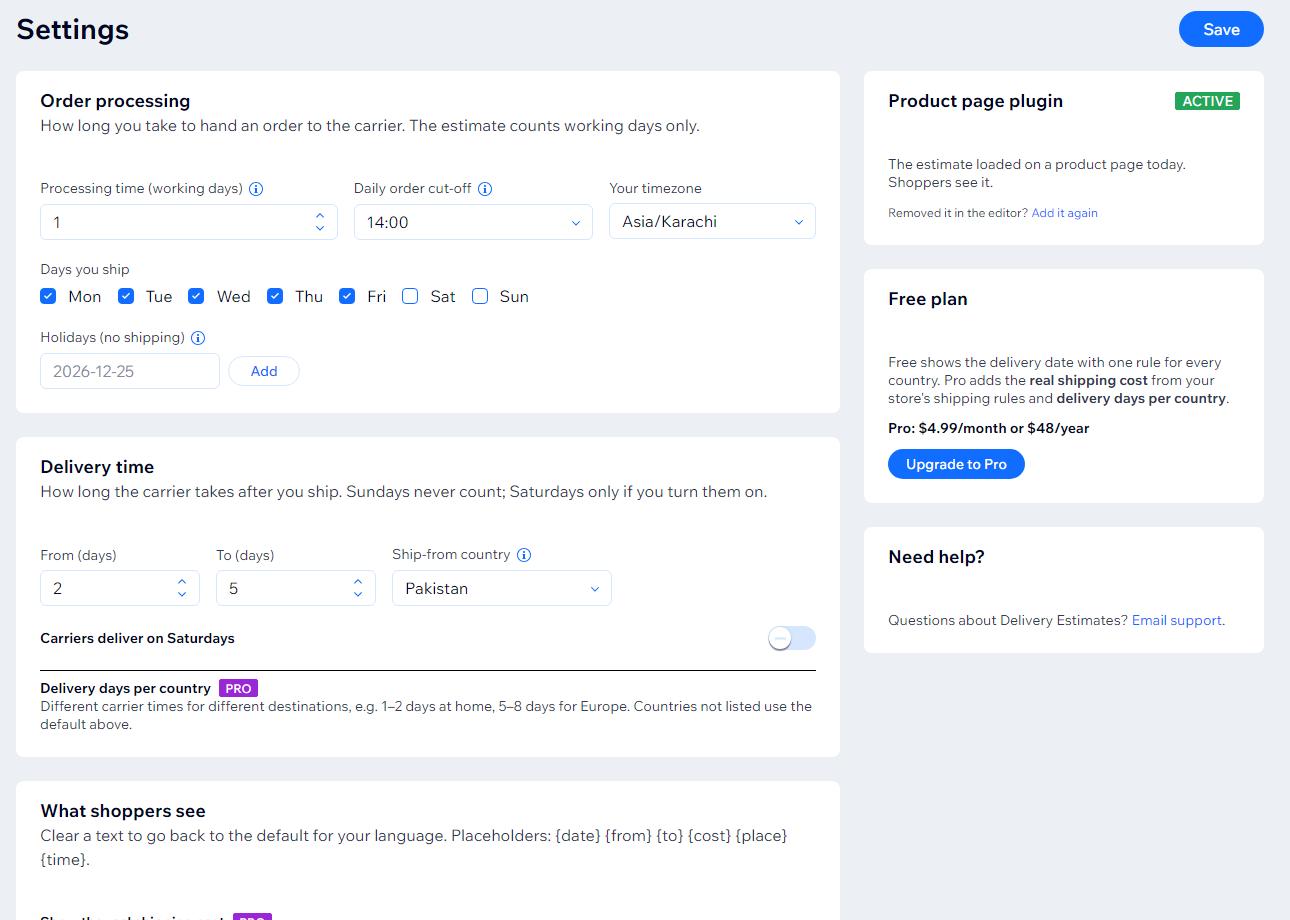
From then on the date moves by itself. An order after the cut-off counts from the next working day, Sundays never count as delivery days (Saturdays only if you turn them on), and your holidays are skipped. The shopper's country is detected, and the dates are written in your store's language.

On the Pro plan, the block also shows the real shipping cost to the shopper's country, taken from your own Wix shipping rules, so it always matches checkout. You can set delivery days per country, for example 1 to 3 days at home and 6 to 9 days for Europe, and shoppers can check their postcode.
A delivery date is a promise. Set the carrier days to what your carrier actually achieves, not its best case, and add your holidays before they arrive.
What makes a delivery promise shoppers trust
Whichever method you use, these details decide whether shoppers believe it.
Show a range, not a single day
"Tue, Oct 20 to Thu, Oct 22" survives a one-day carrier delay. "Arrives Tuesday" doesn't, and a missed promise costs more trust than a cautious one.
Count working days, not calendar days
An order placed on Friday evening doesn't ship on Saturday if you don't work weekends. Your estimate should know that, and so should your holidays.
Say where the date applies
"Delivery to United States" or "to your postcode" tells shoppers the date is for them. A date without a place reads like a guess.
Put it next to the buy button
Shoppers ask "when will it arrive?" at the moment they decide. Under Add to Cart is where they look; a policy page is where they give up.
Keep checkout consistent
The date on the product page and the delivery time at checkout should tell the same story. Update both when your carrier or processing time changes.
Which method should you choose?
| Info section | Shipping settings | Live delivery date | |
|---|---|---|---|
| Cost | Free | Free | Free plan, Pro for cost |
| On the product page | Below the description | Checkout only | Under the buy button |
| Shows a real date | No | No | Yes |
| Knows your cut-off and holidays | No | No | Yes |
| Per country | Type each region | Per region | Detected |
| Shipping cost before the cart | No | No | Pro |
Fill in the delivery times in your shipping settings in any case. For a small store with one shipping region, an info section on top of that may be enough. Once you ship to several countries, or want shoppers to see a real date before they add to cart, a live estimate under the buy button answers the question where they ask it.