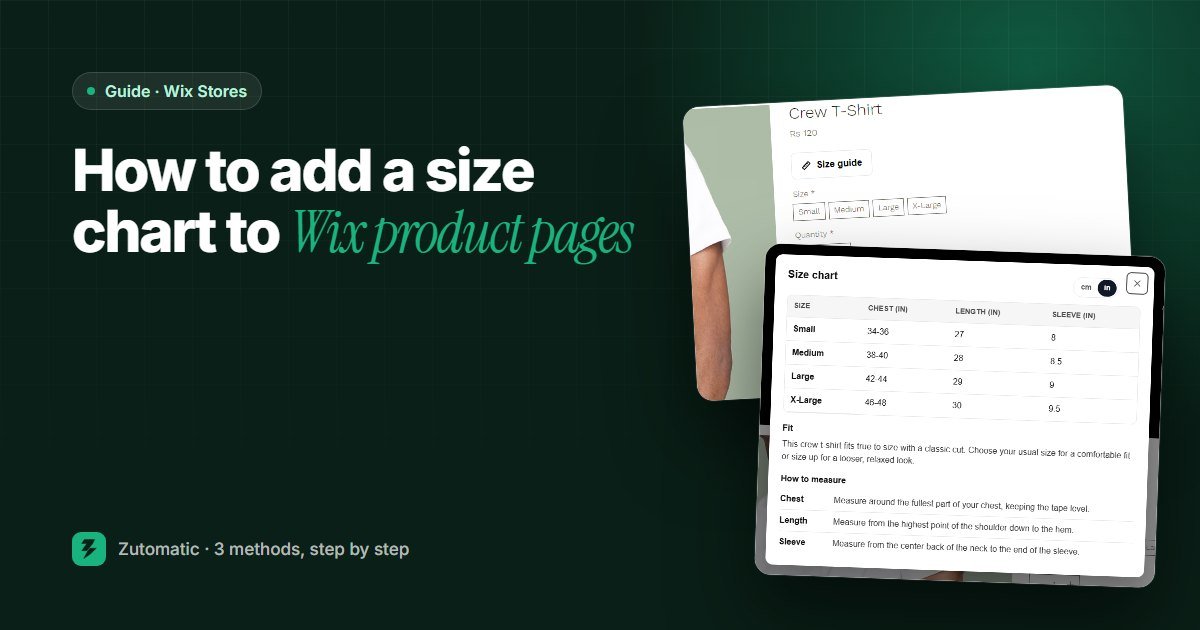
"Will it fit?" is the question that stops more clothing sales than price. When shoppers can't answer it, they leave, ask you by email, or buy two sizes and return one. A clear size chart next to the size picker answers it at the moment they decide.
Wix Stores doesn't include a dedicated size chart feature, but there are three practical ways to add one. Pick the one that fits the size of your catalog.
Method 1: Add sizing to a product info section
Info sections are the collapsible blocks under the product description, such as "Product info" or "Return policy". You can add one for sizing. It's free and needs no app.
- In your Wix dashboard, go to Catalog, then Store Products, and open the product.
- Find the Info sections area and add a new section.
- Name it Size guide.
- Write one line per size, for example: M: chest 96 to 100 cm, length 72 cm. Start with a line that says what you measured, body or garment.
- Save the product, then repeat for every product that needs it. Products with the same sizing can reuse the same text.
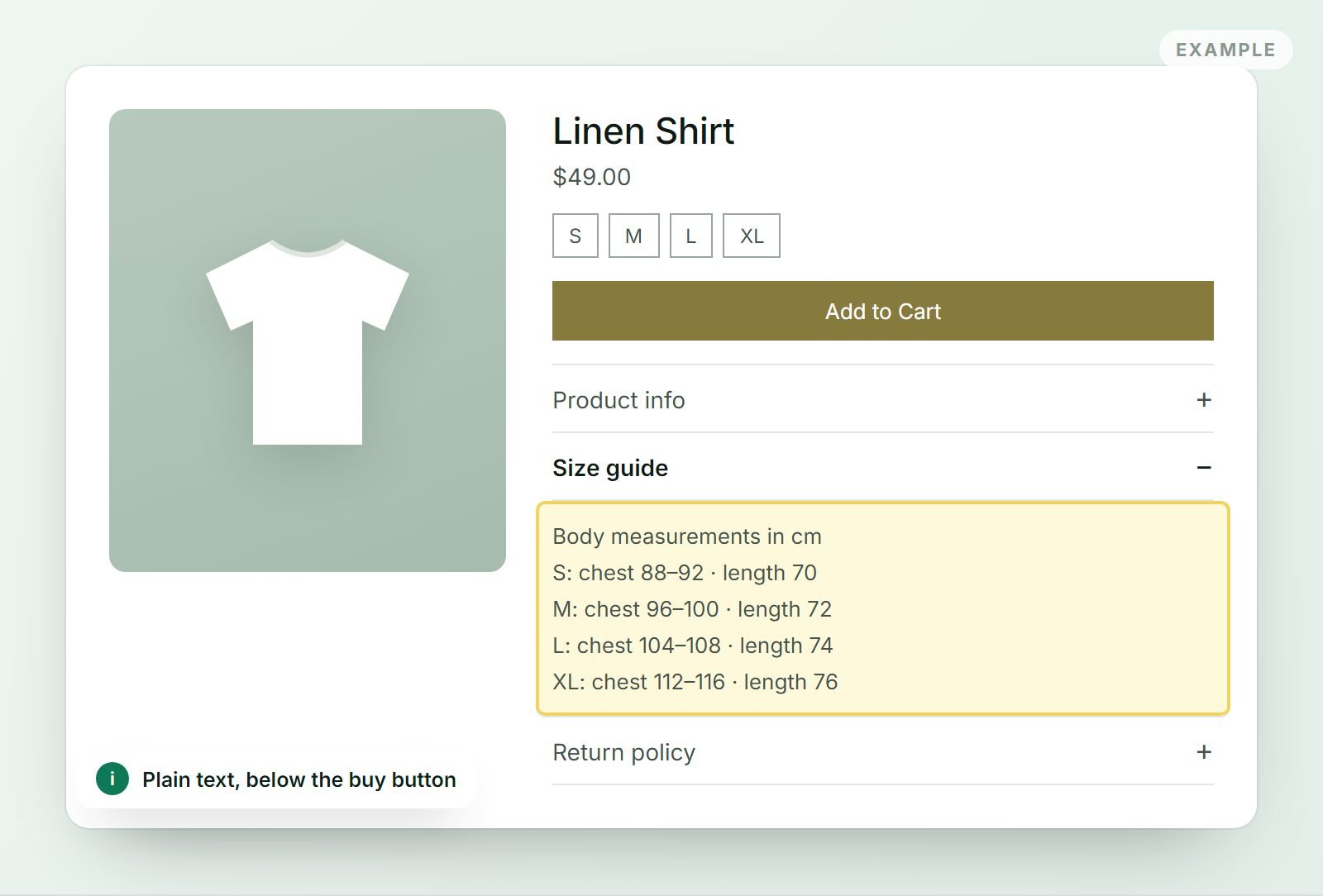
Good for: a handful of products with simple sizing. The catch: it's plain text, it sits below the description where many shoppers never scroll, and with 100 products you'll maintain 100 copies. Change one measurement and you have to edit them all.
Method 2: Upload a size chart image
If your supplier gives you a designed size chart, you can add it as the last image in the product gallery or place it in the description.
It's quick, but it has real drawbacks:
- Hard to read on phones. A chart that looks fine on a laptop often shrinks to unreadable text on mobile, where most shoppers browse.
- Invisible to screen readers and search engines. The numbers inside an image aren't text. Add alt text that lists the key measurements if you go this way.
- Easy to miss. Shoppers don't expect sizing as the seventh gallery photo.
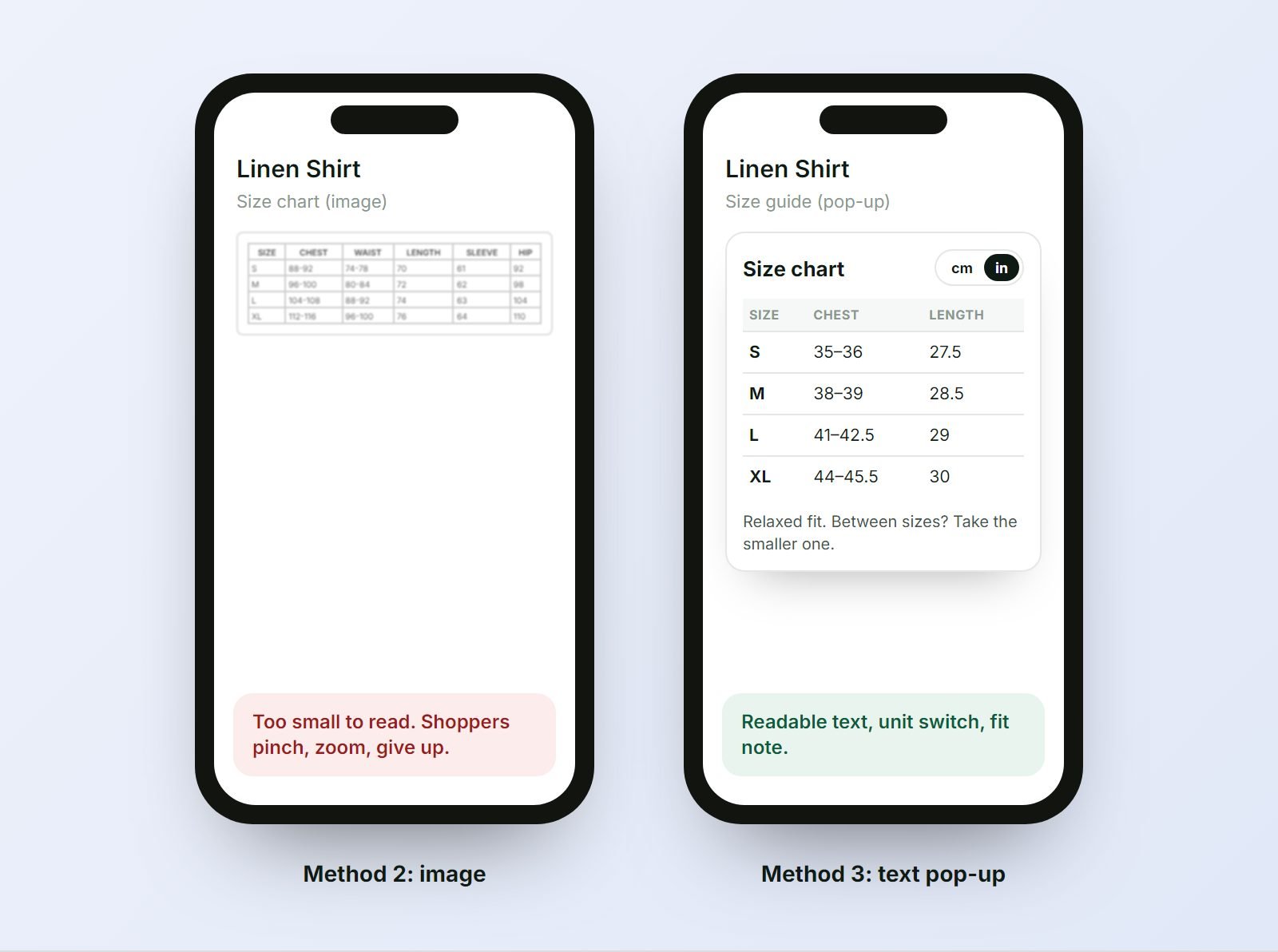
Method 3: A Size guide pop-up with Zutomatic Size Charts
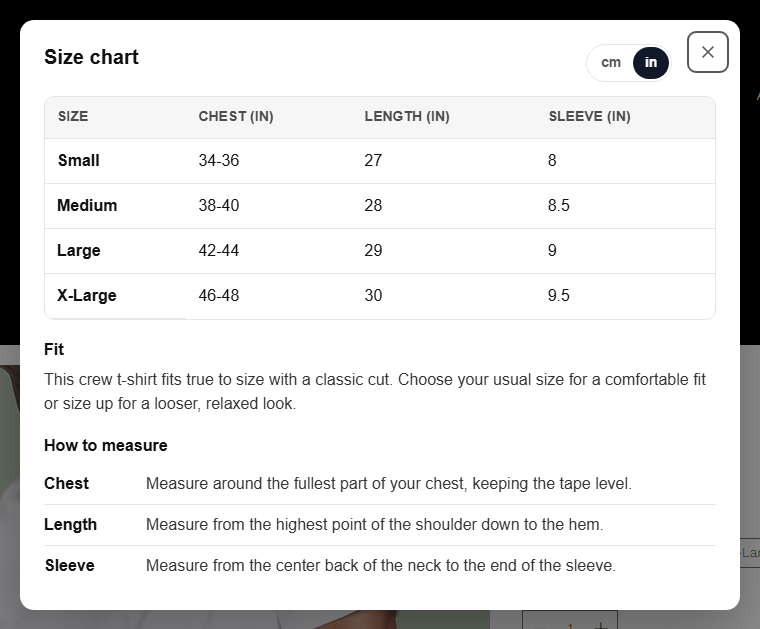
This is the approach the big fashion stores use: a Size guide button right under the price that opens the chart in a pop-up. Zutomatic Size Charts adds that button to your Wix product page and writes the chart for you.
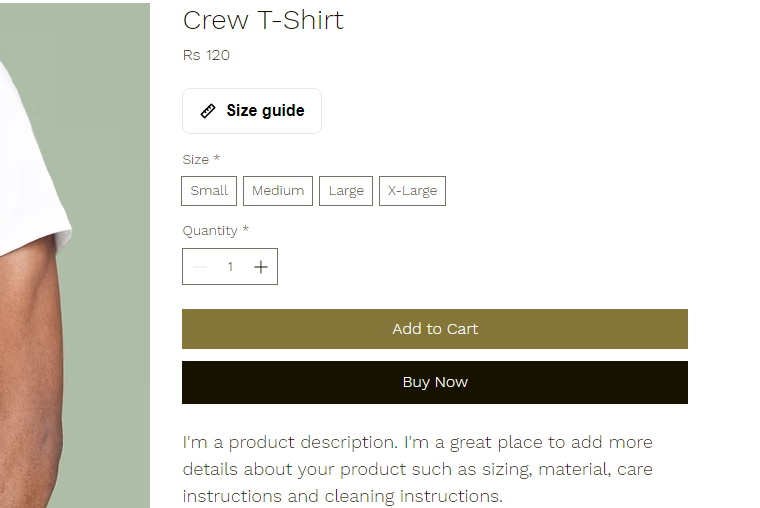
- Install Zutomatic Size Charts from the Wix App Market. The free plan covers 3 products.
- Open the app and click Sync products. Your products, sizes and collections come in.
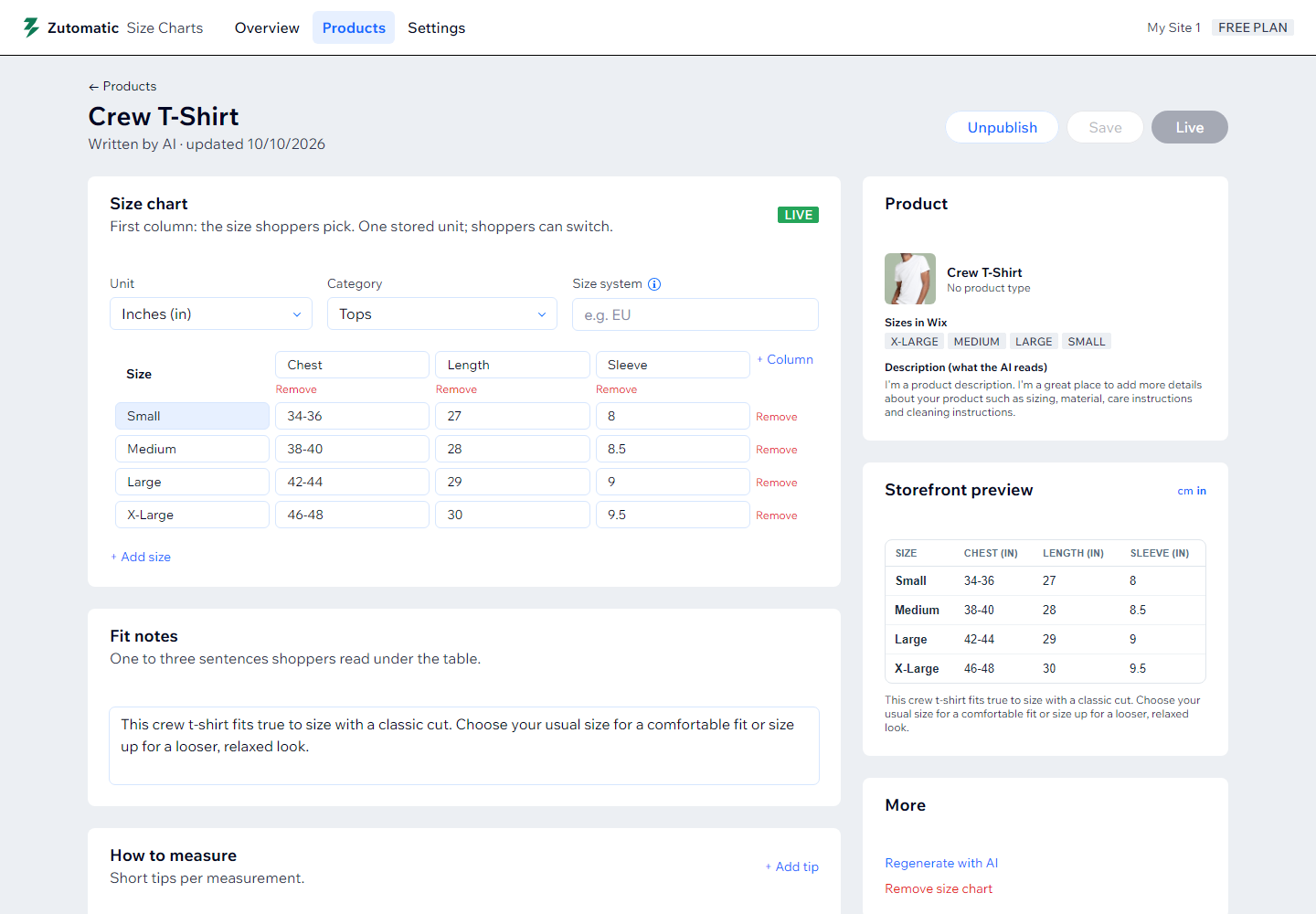
- Open a product and click Generate. The app uses the product's own size options as rows, so a shirt sold in S, M, L and XL gets exactly those four rows. It writes measurements for that product type, a short fit note and one tip per measurement.
- Check the numbers against your supplier's sheet and edit any cell. You can also paste a table straight from Excel or Google Sheets.
- Click Publish, then Add to product page on the Overview. Publish your site once.
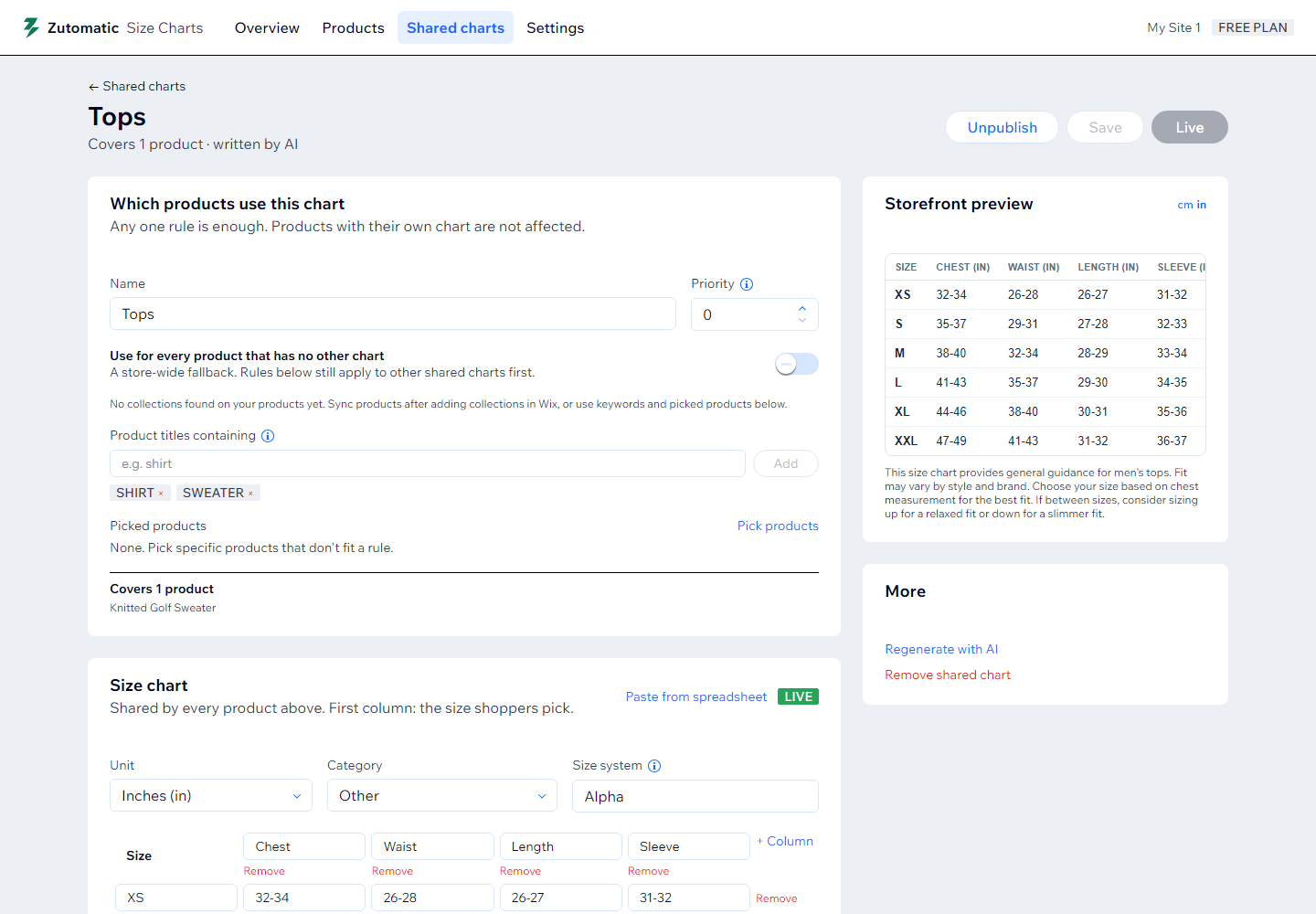
Many similar products? Create a shared chart instead of one per product. Give it a rule, such as the collection "T-shirts" or titles containing "hoodie", and every matching product shows it. Fix a value once and it's fixed everywhere. A product can still have its own chart when it needs different measurements.
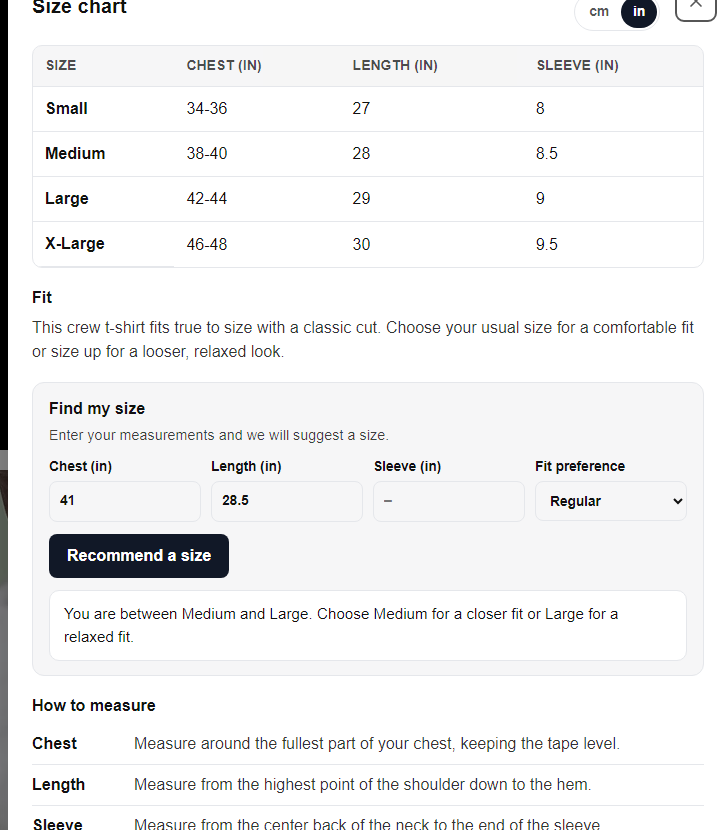
On the Pro plan, shoppers also get a Find my size box inside the pop-up: they type the measurements they know and pick slim, regular or relaxed, and it recommends a size from that product's chart.
AI-written measurements are a starting point based on the product type and description. Always compare them with your supplier's measurements before publishing.
What makes a good size chart
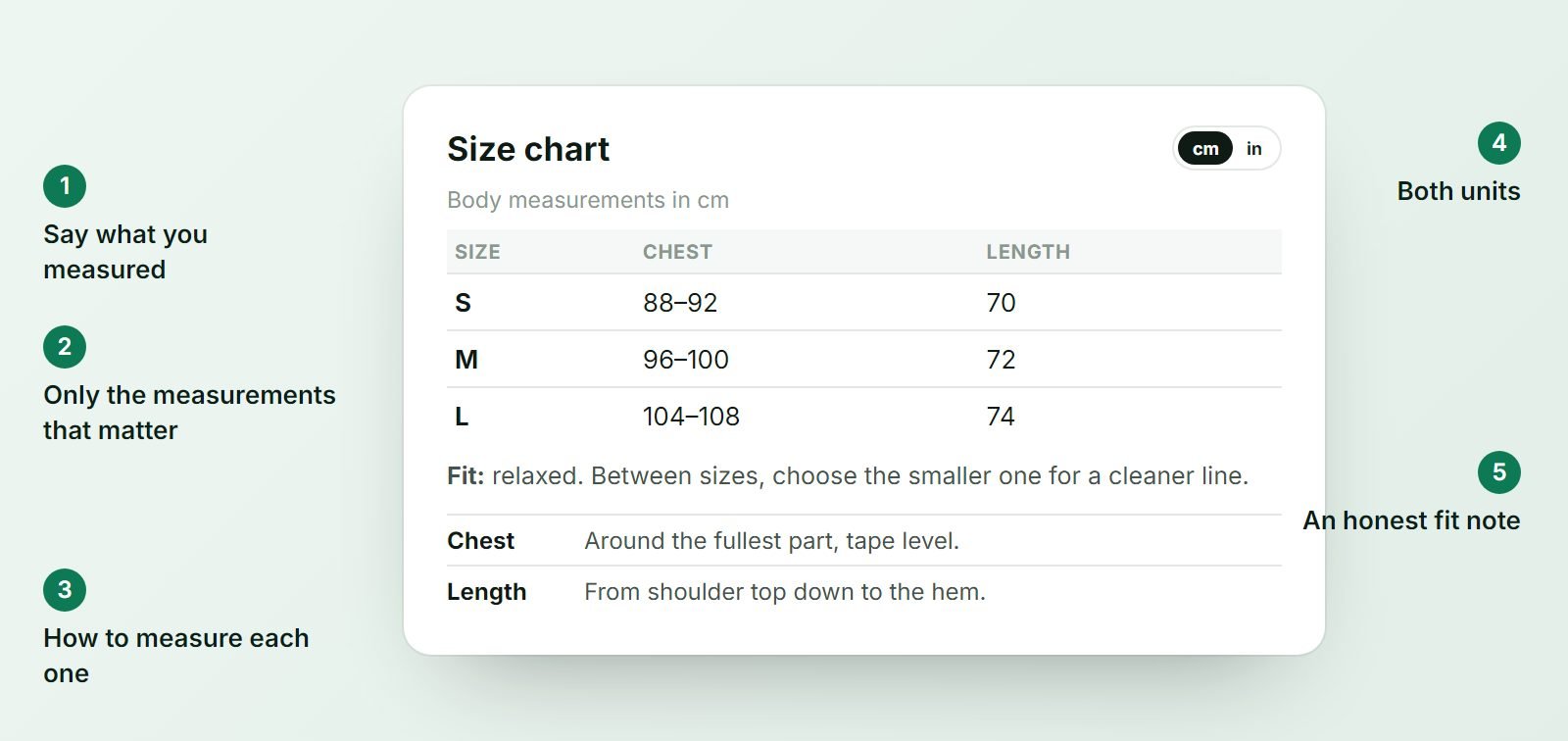
Whichever method you use, these five details decide whether shoppers trust the chart.
Say what you measured
"Chest 96 cm" means something different for a body and for a flat-laid garment. One line above the table removes the doubt.
Only the measurements that matter
Tops need chest and length, maybe sleeve. Trousers need waist, hips and inseam. Shoes need foot length. Extra columns make the chart harder to read, especially on phones.
Explain how to measure
Many shoppers don't know where their natural waist is or how to measure an inseam. One short sentence per measurement prevents wrong orders.
Add an honest fit note
"Runs small, size up if you're between sizes" is the line shoppers look for. If a product fits differently from the rest of your range, say so.
Offer both units
If you sell internationally, show centimetres and inches, or let shoppers switch. Converting in their head is one more reason to leave.
Which method should you choose?
| Info section | Image | Size guide pop-up | |
|---|---|---|---|
| Cost | Free | Free | Free for 3 products |
| Next to the size picker | No | No | Yes |
| Readable on phones | Yes | Often not | Yes |
| cm and inches | Type both | Type both | Switch |
| One chart for many products | Copy by hand | Upload each | Shared charts |
| Setup per product | A few minutes | A minute | Seconds, or none with a shared chart |
For five products or fewer with simple sizing, an info section is enough. For a growing clothing, footwear or accessories store, a Size guide pop-up placed next to the size picker gives shoppers the answer where they need it, and shared charts keep it manageable as your catalog grows.